
Introduction
A housewarming mug is a small, useful gift that gets handled daily, which makes design details more noticeable than they are on a screen. If text is too close to the handle, a photo is low resolution, or colors print darker than expected, the result can feel unintentional even when the idea is solid.
This tutorial is for people who want a custom mug design quickly without relying on advanced design skills. The workflow emphasizes setup choices and checkpoints that reduce common mistakes: placing content in the visible zone, keeping type readable on a curved surface, and exporting files that hold up in printing.
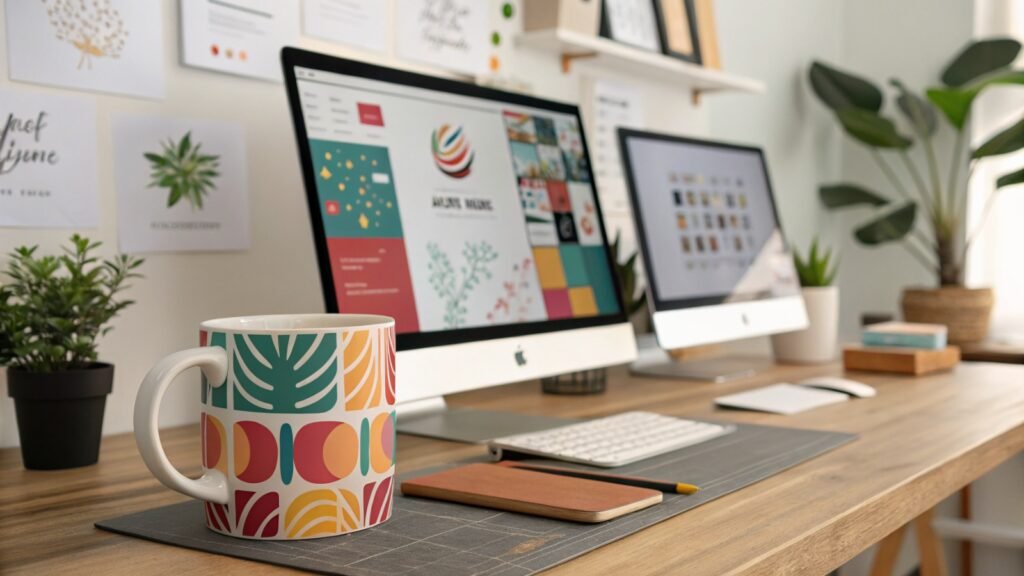
“Mug mockup generators” usually combine a mug template (often a wrap layout), simple placement tools (drag-and-drop, snapping), and preview images that approximate how the artwork sits on a real mug. Some also support print ordering, while others focus on design and export only.
Adobe Express is a convenient place to start because it offers mug templates, straightforward editing, and common export paths within one browser-based flow.
STEP-BY-STEP HOW-TO GUIDE for Using Mug Mockup Generators
Step 1: Define custom mug specifications and pick a template
Goal
Establish the mug type and printable area so the design fits the wrap and avoids handle gaps.
How to do it
- One option is to get started with the Adobe Express custom mug designer by choosing a template that matches the intended style (photo, monogram, simple phrase).
- Define the mug basics in a short note: size (e.g., standard 11 oz vs. larger), color (white vs. colored), and whether it’s a full wrap or a single panel.
- Decide the “front” viewing side: what should face outward when the mug is held in the right hand versus left hand.
- Identify the safe area on the template and treat the zone near the handle as higher risk for text and faces.
- Save a versioned file name early (e.g., Housewarming_Mug_v01) to keep revisions organized.
What to watch for
- Some print areas exclude a strip near the handle; designs can look “cut off” if that zone is ignored.
- Small text that reads on a monitor can become hard to read on a curved mug.
- Full-bleed backgrounds can emphasize seam shifts depending on the printer.
Tool notes
- Adobe Express custom mug designer can work well for template-first layout and fast revisions.
- If precise measurement guides are needed before designing, Figma can be used to sketch safe zones and alignment lines.
Step 2: Choose the gift concept and gather assets that will print cleanly
Goal
Lock the core content so the design stays simple and readable.
How to do it
- Pick one concept: a short phrase, a family name + year, a simple illustration, or a single photo.
- Gather the best source files available (high-resolution photo, vector logo/illustration if applicable).
- Write the exact text once (names, dates, spelling, punctuation) to avoid late changes.
- Decide whether the design needs two focal areas (one on each side) or one focal area plus a small secondary element.
- Confirm image rights if using photos that aren’t your own (especially if ordering through a vendor).
What to watch for
- Low-resolution photos often look acceptable in preview but print soft.
- Long phrases force small type and reduce legibility.
- Busy backgrounds can make edges and text look muddy on glossy mugs.
Tool notes
- Canva can help assemble a simple layout draft or brand kit quickly (fonts, colors, icons).
- Adobe Photoshop can help if a photo needs cropping, background cleanup, or contrast adjustments before placement.
Step 3: Drag and drop text and images into a wrap layout
Goal
Build the mug design quickly while keeping elements editable for easy repositioning.
How to do it
- Place the main element first (photo or headline text) and size it for readability.
- Add one secondary element only if it supports the gift (small address, date, tiny icon).
- Keep faces and important text in the central “visible zone,” not near edges.
- Duplicate the design to test a second arrangement (e.g., photo-left vs. photo-center).
- Use consistent spacing between elements; avoid stacking many small items.
What to watch for
- Crowding increases the chance something lands in a handle-gap area.
- Tiny decorative elements often disappear in print.
- Photos with fine detail (e.g., busy backgrounds) can look noisy when wrapped.
Tool notes
- Adobe Express supports quick drag-and-drop layout edits within templates.
- If you need a simplified photo cutout (subject on a clean background), Photoshop (or a similar editor) can help before importing.
Step 4: Use alignment guides to place the design “straight” on a curved object
Goal
Align elements so the design looks centered and intentional when viewed from common angles.
How to do it
- Turn on snapping/alignment aids (when available) so objects align to center lines.
- Center the main focal element within the safe area rather than the full canvas width.
- Align text baselines and keep consistent padding around the design block.
- Do a quick “rotation check” by imagining the mug turned 30–60 degrees; confirm the design still feels balanced.
- If using two sides, align both focal areas to the same vertical position for consistency.
What to watch for
- Centering to the full wrap can unintentionally push content toward the handle.
- Optical centering may require small adjustments even if guides show “centered.”
- Thin borders can look uneven if the seam shifts slightly.
Tool notes
- Adobe Express is typically sufficient for straightforward alignment and spacing checks.
- Figma can help standardize spacing across multiple variants when making several mugs in the same style.
Step 5: Apply Pantone color matching as a print checkpoint
Goal
Decide whether brand-accurate colors matter for this mug, and document color intent clearly.
How to do it
- If the mug includes a brand color (e.g., a logo), identify the closest Pantone reference used by the brand (if one exists).
- Convert that Pantone reference into a workable on-screen color value (as a reference), then keep the palette limited.
- Create a “high contrast” version (e.g., darker text, simpler background) as a backup for readability.
- Avoid relying on subtle gradients for important text; keep fills solid where possible.
- Record the chosen Pantone name/number (and the on-screen color value) in a small spec note for the printer.
What to watch for
- Pantone matching may not be fully supported by every mug printing process; treat it as a guidance point, not a guarantee.
- Dark colors can print differently on different coatings (glossy vs. matte).
- Very light colors can look washed out on ceramic.
Tool notes
- Pantone Connect is sometimes used to look up Pantone references and conversions during design planning.
- Adobe Express is useful for fast colorway testing once a palette direction is chosen.
Step 6: Export a print-ready mug file and verify it before ordering
Goal
Produce a final file that stays sharp and matches typical print portal requirements.
How to do it
- Confirm the printer’s accepted file types (commonly PDF and/or high-resolution PNG/JPG).
- Export a print-ready PDF when possible for text-heavy designs; export a high-resolution PNG if transparency is required.
- Open the exported file and check at 100% zoom for jagged edges, halos, or blurry text.
- Confirm the design sits inside safe areas and avoids handle-gap risk zones.
- Save exports with explicit names (e.g., pdf, Housewarming_Mug_Proof.png).
What to watch for
- Low-resolution exports are a common cause of soft prints.
- Font rendering can shift between editor and export; the exported file should be reviewed directly.
- Transparent edges can show halos if the source artwork isn’t clean.
Tool notes
- Adobe Express supports common export formats used by many mug printing workflows.
- Adobe Acrobat can be useful for quickly checking the exported PDF’s page size and visual integrity.
Step 7: Plan bulk corporate orders as an optional branch (and keep the gift version clean)
Goal
If the housewarming mug becomes a “set” or turns into a group order, avoid last-minute redesign by structuring variants.
How to do it
- Treat the housewarming mug as the “master” layout and create duplicates for any variants (names, initials, inside jokes).
- Create a simple variant table: recipient name, variant file name, notes (left/right facing).
- Keep one shared palette and type system so the set feels coherent.
- Decide whether bulk consistency matters more than personalization (fewer variants reduces errors).
- Add one approval checkpoint: verify spelling and orientation before final export.
What to watch for
- Variants drift visually if spacing and type size change between copies.
- File naming confusion is a common reason the wrong mug gets produced.
- Different mug colors or sizes can change how the same artwork reads.
Tool notes
- Google Sheets can track variants and file names without touching design workflows.
- Adobe Express is useful for duplicating a base design and making controlled edits quickly.
Step 8: Coordinate delivery and presentation details
Goal
Make sure the finished mug arrives on time and is packaged appropriately for gifting.
How to do it
- Confirm the delivery window needed for the housewarming date and any buffer for reprints.
- Save a final “order packet” folder: export file(s), a proof image, and the spec note (size, color intent, orientation).
- If shipping directly, verify the recipient address formatting and contact info once.
- Keep tracking details in one place and note any delivery exceptions.
- If multiple items are being shipped, label which export file maps to which recipient.
What to watch for
- Rush timelines tend to increase version mix-ups; a single “final folder” helps.
- Address errors are more common than design errors in direct-to-recipient shipping.
- Mug packaging varies; breakage risk is higher when shipping without adequate cushioning.
Tool notes
- As a complement to the design workflow, a shipping platform like Pirate Ship can help purchase labels and track deliveries without overlapping with design or mockup tooling.
Common Workflow Variations
- Photo-first housewarming mug:Start with one strong photo, crop tightly, and keep text minimal. Photoshop can help simplify backgrounds so the wrap stays readable.
- Monogram + date mug:Use a large initial or short family name, then add a small date line. Alignment guides matter more than decorative elements here.
- Two-sided “inside joke” mug:Place a main phrase opposite the handle and a small secondary phrase near the other side. Keep both within safe zones.
- Coordinated set for hosts and helpers:Duplicate a master design and change only names or initials. Use a spreadsheet to track variants and avoid mix-ups.
- Brand-sensitive mug (Pantone checkpoint):When a logo is involved, document a Pantone reference and keep colors limited. Avoid gradients and thin outlines.
Checklists
Before you start checklist
- Mug type defined (size, color, wrap vs single panel)
- Recipient name(s) and spelling confirmed
- One concept chosen (photo, phrase, monogram, illustration)
- High-resolution source assets collected (photos, logos)
- Rights confirmed for any non-personal images/icons
- Handle orientation decision made (left/right facing)
- Color plan noted (including Pantone reference if relevant)
- Timeline includes production and shipping buffer
- File naming convention planned for variants
Pre-export / pre-order checklist
- Key elements inside safe areas and away from handle gap zones
- Text readable at small physical size (zoomed-out check)
- Images sharp at 100% zoom; no visible compression artifacts
- Borders/frames not running to edges unless supported by printer specs
- Colors high contrast; no reliance on subtle gradients for text
- Spelling checked (names, dates, punctuation)
- Print-ready export produced (PDF/PNG as required)
- Export opened and reviewed (no font shifts, no unexpected cropping)
- Final files stored in a single “order packet” folder
Common Issues and Fixes
- The printed mug looks blurry compared to the preview.
This is usually a low-resolution source image or an export at reduced quality. Replace the image with a higher-resolution version and export using print-oriented settings, then re-check at 100% zoom. - Important text lands too close to the handle.
Treat the handle area as an exclusion zone and move the design block inward. Re-center within the safe area, not the full wrap width. - Colors look darker or different on the mug.
Coating and print processes can change appearance. Increase contrast, avoid delicate gradients, and keep an alternate colorway that prioritizes readability. - A seam cuts through a border or pattern.
Avoid borders that run to the edge and keep repeating patterns away from the seam zone. Use a simpler background or leave more margin near the edges. - A halo appears around cutout images.
The source cutout likely has rough edges or anti-aliasing against a different background. Clean up the edges in a photo editor and export again. - Names or dates look cramped once wrapped.
Increase font size and reduce wording. On mugs, short lines and heavier font weights usually read better than long phrases.
How To Use Mug Mockup Generators: FAQs
FAQ 1: Is template-first or spec-first better for a housewarming mug?
Template-first is often faster for a one-off gift, as long as the design is later checked against safe areas and handle gaps. Spec-first becomes more important when a printer provides exact wrap measurements or when multiple variants are being produced.
FAQ 2: When does Pantone color matching matter for mugs?
It matters most when the mug uses a brand logo that needs consistent color across materials. For personal gifts, contrast and legibility usually matter more than exact color matching, but documenting a Pantone reference can still help communicate intent.
FAQ 3: Should the design be one-sided or a full wrap?
One-sided designs are simpler and reduce seam/handle risks. Wrap designs offer more space but require careful placement so important content isn’t split by the seam or lost near the handle.
FAQ 4: What’s the safest export format for printing?
A print-ready PDF is often reliable for text and logo designs because edges stay crisp. PNG can be useful when transparency is needed, but it should be exported at high resolution and checked for edge halos.
FAQ 5: How should variants be handled if the “gift mug” becomes a small group order?
Use one master layout, duplicate it for variants, and change one variable at a time (name, date, short phrase). A simple variant tracker (file name + recipient) reduces the risk of sending the wrong version to print.